Teachers on The KWL Hub can now assign individual due dates for graded assignments to different classes, students, or groups! This new feature gives teachers greater flexibility by now having the option to customize “sets” of students, classes, or groups to which an individual due date will be assigned.
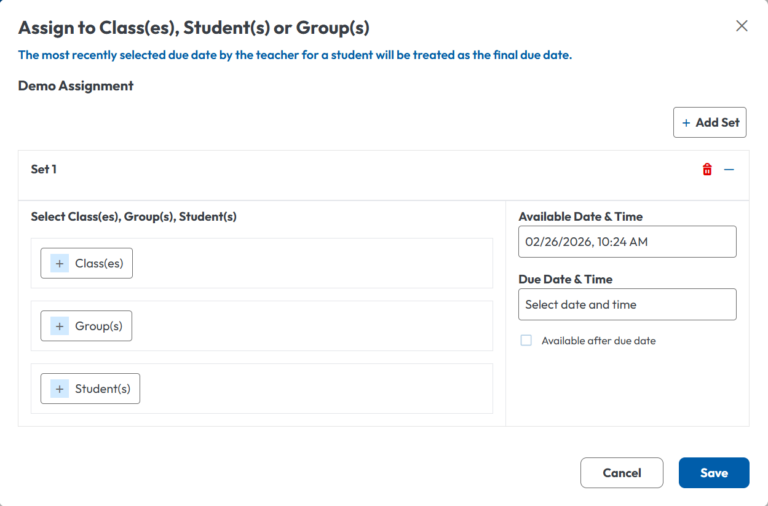
Whenever a teacher wants to assign a graded assignment, the following window will appear:
Here we can see that the assignment is no longer assigned directly to one or more classes, students, or groups; it’s now assigned to a number of sets of classes, students, or groups. “Set 1” refers to the default set of students, groups or classes the assignment is assigned to.
How to Assign Different Assignment Due Dates to Different Students
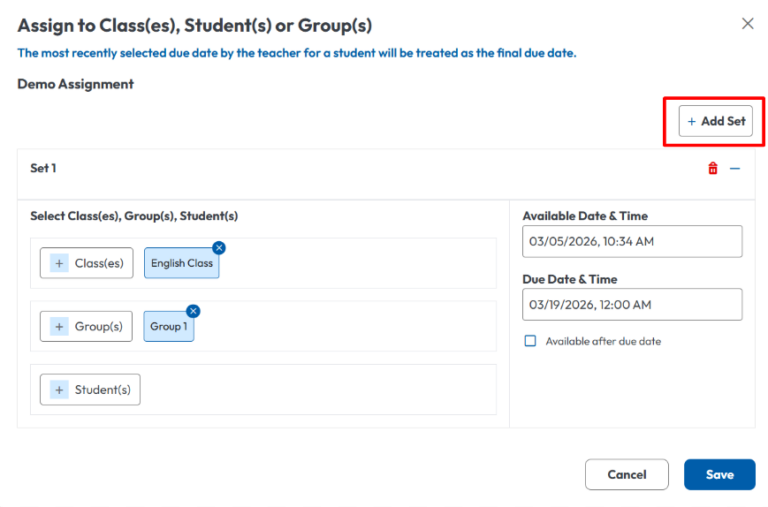
To make an assignment due or available to different students at different times, teachers can do so by clicking on the “Add Set” button and selecting the relevant Classes, Group, or Students.
A new set will be created, were teachers can define different due dates and penalties for different groups of students.
When teachers select the students, classes or groups for Set 2, the previous assignment targets will be grayed out, to avoid assigning overlapping due dates.
When finished creating sets, click “Save” to assign the assignment to the selected groups, classes, or students per each created set.
How to Assign an Assignment without Separate Due Dates
If the teacher wants to assign an assignment without separate due dates, they should add all the target classes, groups, and students to “Set 1”, then select the date and penalty as before and, when everything’s done, click on “Save” to complete the assignment.
Assigning Separate Due Dates from within the eBook
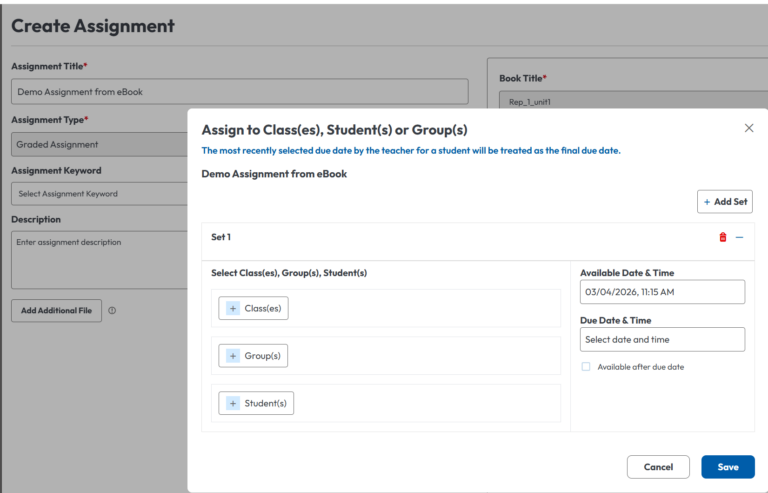
This same pop-up will also be present when creating and assigning a graded assignment directly from the eBook/course source, or when creating masterclass assignments.
Editing and Deleting Specific Due Dates
If, after an assignment is assigned, the teacher wants to edit the due dates of a set or remove them, they can do so via the Edit and Delete buttons:
From here, teachers can reassign, unassign, or edit the available and due dates after assigning them, as well as delete the set altogether.
Please note that in order to avoid unintentional data loss, deletion of sets is only available while editing or when first creating a set.
Please also note: In the scenario where a student might have multiple due dates assigned to them for the same assignment, the newest assignation date would prevail. The same thing happens if an assignment is reassigned after grading.
Example:
A student is in Class A and Group 2.
The teacher assigns an assignment for Class A to be due on January 30th.
Later, the teacher assigns the same assignment for Group 2, to be due on February 5th.
In this case, the student’s due date for the assignment would be February 5th, because it’s the most recently defined date.