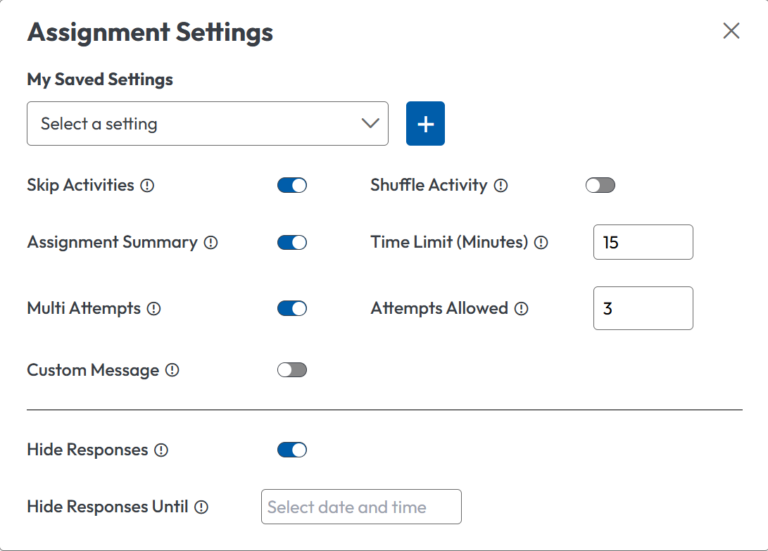
We have now introduced the ability to create and save preset settings for graded assignments. This feature allows teachers to save commonly used configurations, saving time and standardizing assignment rules across courses.
When creating a graded assignment from anywhere within The KWL Hub, teachers accessing the settings panel will now see a dropdown menu titled “My Saved Settings”.
From this menu, teachers can:
Configure settings manually without using a preset
Select one of their previously saved presets
Create a new preset
When a preset is selected, its saved configuration automatically replaces the current assignment settings.
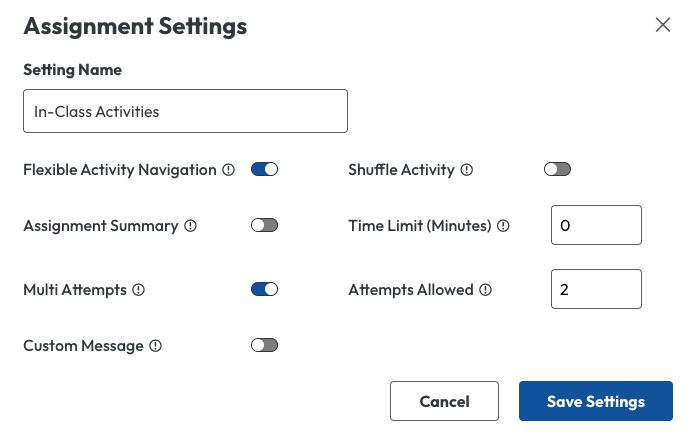
Creating a Preset from the Assignment Creation Screen
When selecting the option to create a preset, a configuration window will open. Teachers can adjust all available settings according to their pedagogical needs. Once the preset is configured, named, and saved, it will appear in the “My Saved Settings” dropdown menu for future use.
Creating a New Preset
Creating a Preset from within an eBook Page
Presets can also be created while generating an assignment directly from any eBook page. All configuration options available in the assignment creation screen are equally available when creating an assignment from source material.
Modifying Preset Settings
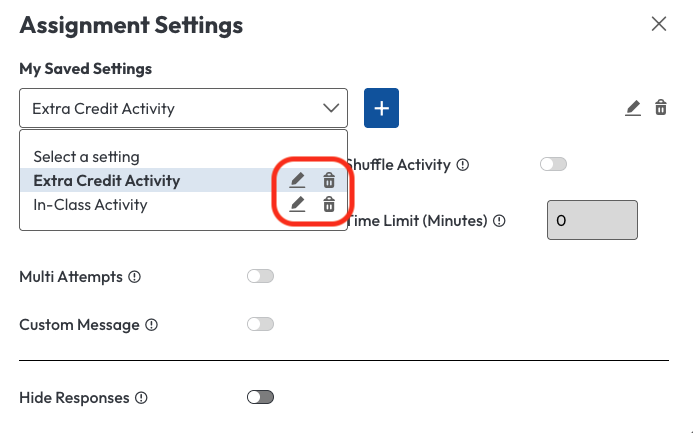
To edit a preset, locate an unused preset in the dropdown menu and click the pencil icon. The settings can then be modified and saved again.
Please note that only unused presets can be edited. Presets currently applied to existing assignments cannot be modified, in order to prevent unintended changes to student grades.
Deleting Preset Settings
To delete a preset, select it in the dropdown menu and click the trash icon. If the deleted preset was previously used in assignments, those assignments will retain their existing settings. However, they will no longer be linked to a preset.