
What’s New on The KWL Hub for 2026-27
The team at Klett World Languages has been hard at work improving The KWL Hub for both teachers and students. Based on valuable feedback from teachers like you, we’ve implemented a number of new features designed to make the upcoming 2026-2027 school year a success.
Category Report: A New Way to Grade
We are thrilled to introduce Categories: a brand-new way to classify and sort assignments on our platform. With this feature, teachers can easily organize assignments and assign custom weights to different groups of assessments, giving you total control over your grading system.
How to Create Your First Category
- Navigate to Assigments > Create Assignment.
- Click on the newly added Categories tab.
- On your first visit, only the default “No Category” option will be available. To begin customizing, click Add Category to open the setup menu,

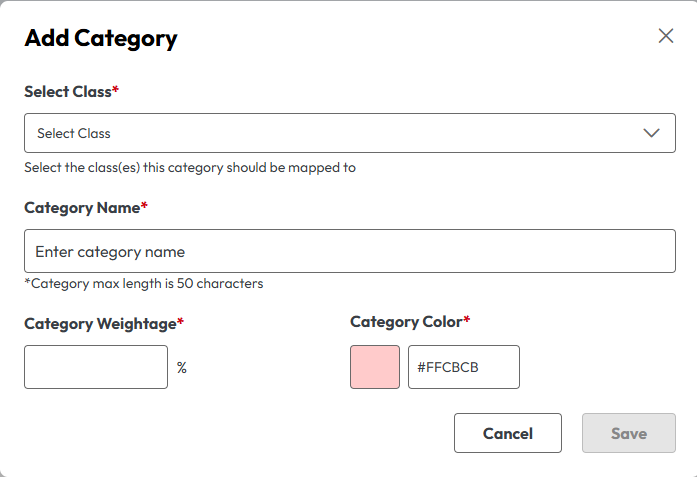
4. In the Add Category window, choose which class (or classes) the category will be associated with.
5. Give your category a name, a distinct color, and a weightage percentage.
6. Click Save when you are done.
Applying Categories to Assignments
Once your categories are set up, applying them is incredibly straightforward.
- Start creating a new assignment just like you normally would.
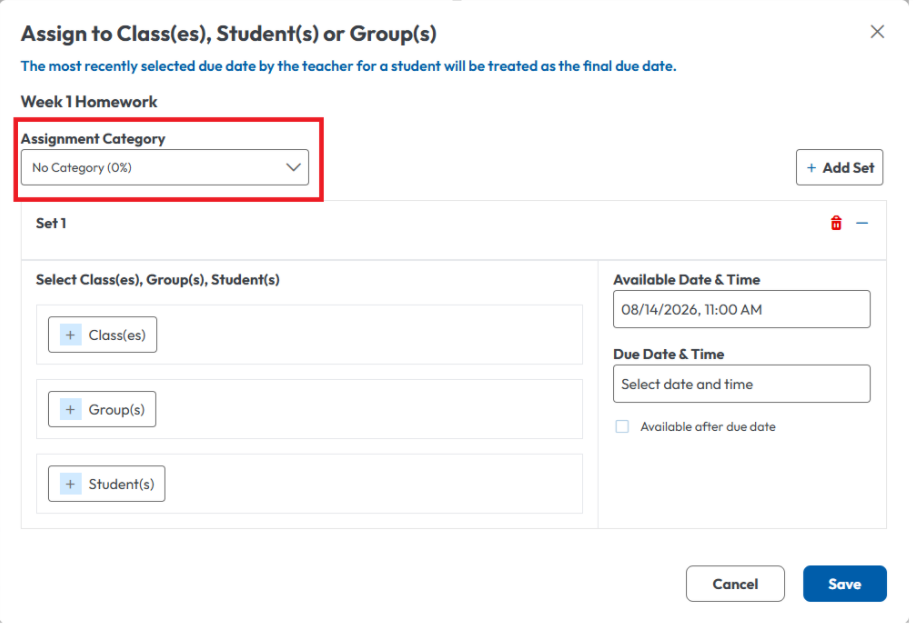
- You will notice a new category option in your assignment workflow.
- Open the dropdown menu to see an exhaustive list of all categories mapped to your associated classes.
- Select the appropriate category (it will default to “No Category”).
Tracking Progress with Weighted Grades
To support this new system, we have also introduced dynamic new views in your Gradebook.
- Navigate to the Class Report section of the Gradebook.
- Select a class to reveal the new Weighted Grade button.

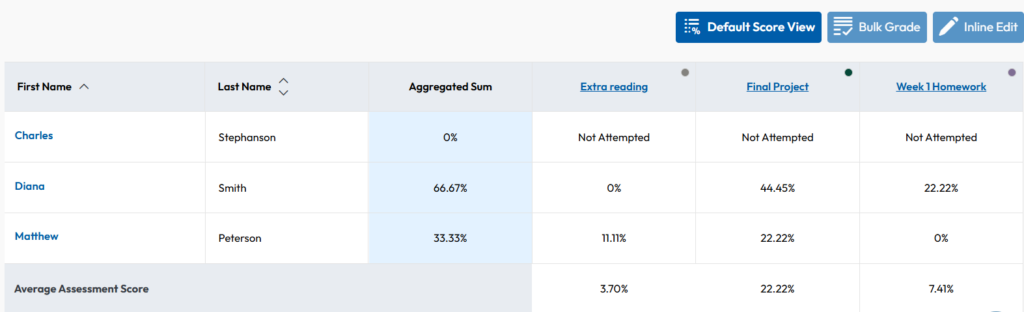
By clicking this button, your view will instantly change from a standard table of total points achieved to a dynamic table showing values with their corresponding weights taken into account.
You can completely customize this view by filtering specific classes or categories. Best of all, the weights will automatically recalculate depending on exactly what you choose to display on the screen!
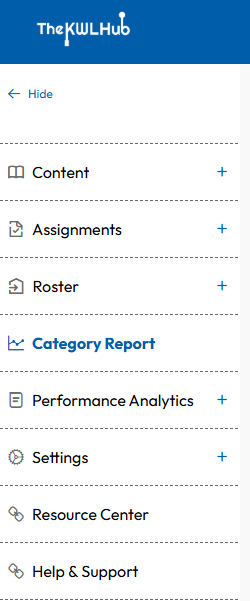
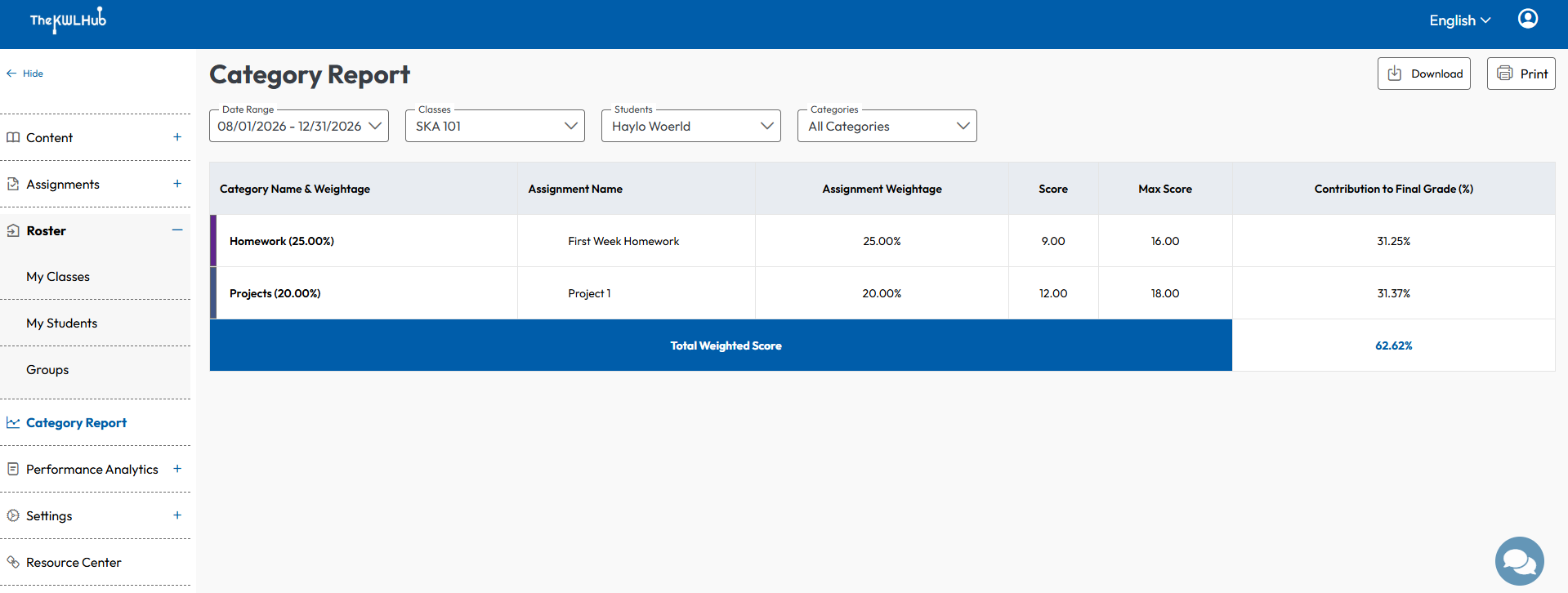
Finally, this feature also has a dedicated section in your main sidebar.
From this menu (see image below(, you can access a highly detailed report for each student across any of their categories. This makes it easier than ever to track their individual performance and see exactly how each score contributes to their final course grade.
Performance Analytics
Performance Analytics is a powerful new feature that helps teachers profile classes, quickly identify individual strengths and weaknesses, and provide personalized attention to every student. It can be accessed directly from the left sidebar. Assignments are now mapped to specific skill categories to give you a holistic view of student progress.
These tracked skills include Interpretive Reading, Interpretive Listening, Interpretive Viewing) Presentational Speaking, Presentational Writing, Interpersonal Speaking, Interpersonal Writing, Intercultural Competence, Grammar, Vocabulary, Pronunciation & Spelling, and Assessment.
The Dashboard Overview
Click on Dashboard to access the landing page, which provides a condensed view of overall performance based on your chosen time period and class filters.
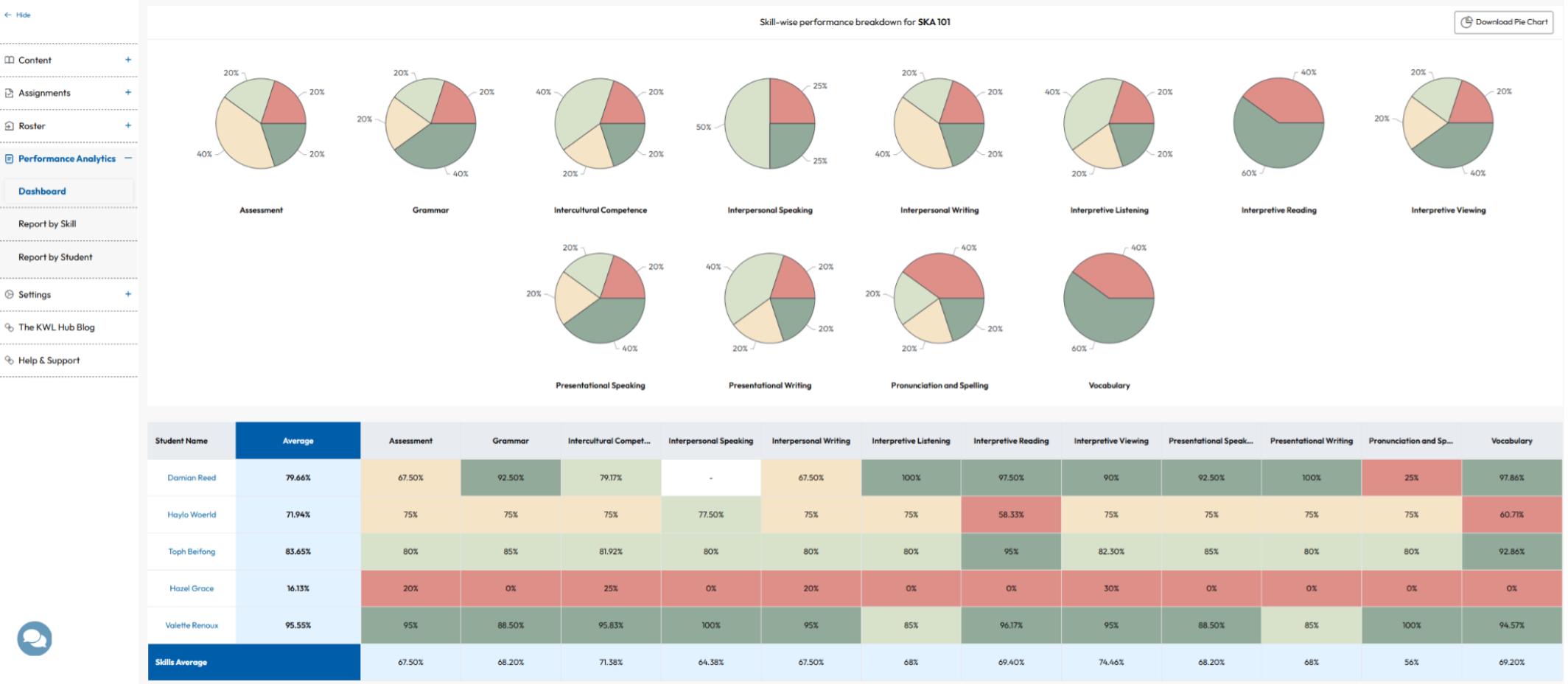
The Dashboard overview allows you to view:
- Quick visual insights: Automatically generated, downloadable pie charts that represent the percentage of the class fitting into each skill category.
- A detailed class table: See a detailed breakdown of each student’s performance across all assigned skills, alongside calculated class averages.
- Color-coded clarity: All categories and grade averages are color-coded by specific grade ranges so you can spot trends at a glance.
Deep Dive: Reports by Skill and Student
In addition to the Dashboard, the sidebar contains two specialized reporting sections for highly detailed analytics.
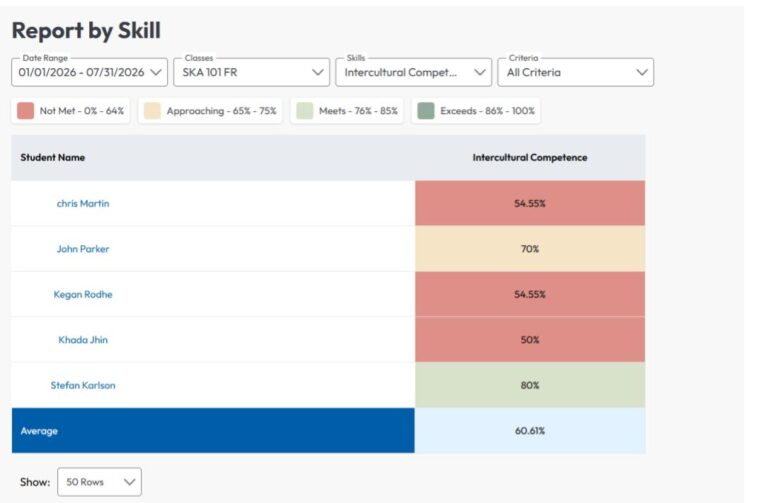
Report by Skill: Analyze how your entire class is performing in one specific skill. You can filter by date, class, or performance criteria. Access this manually or by simply clicking any segment of a Dashboard pie chart.
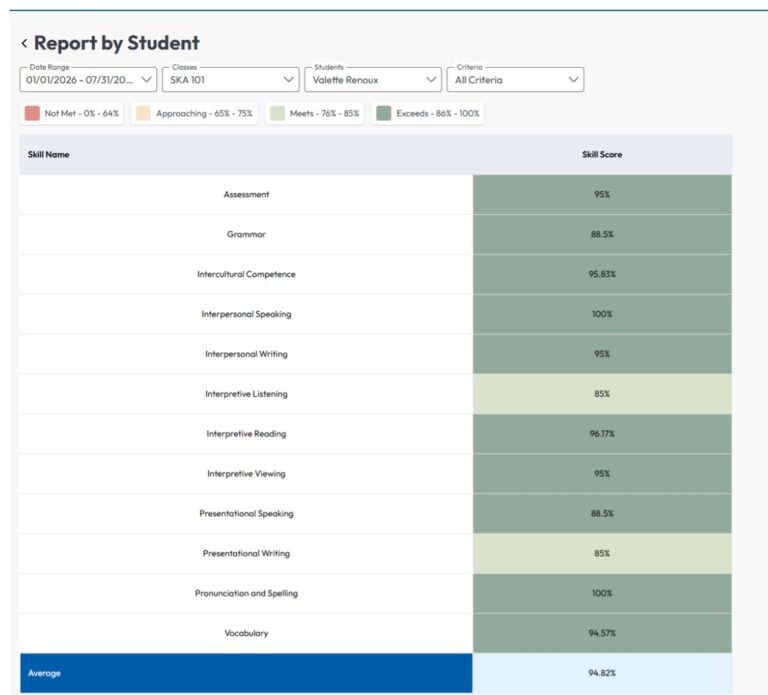
Report by Student: View a comprehensive breakdown of an individual student’s attempted skills and overall averages. Access student-specific reports via the sidebar menu, by clicking a student’s name on the Dashboard table, or by clicking their name inside the “Report by Skill” screen.
Please note: Supported courses.
Performance Analytics is currently available for the following KWL Hub programs:
- Reporteros (Revised Edition 1-4, and 1-4 including Florida Standards)
- Reporters Francophones 1-4 (including Florida Standards)
- Das Reporterteam 1-3
- Giovani Reporter 1-2
- Mapas 1-4
Streamlining Co-Teaching: Manage Shared Classes Together
A big change is coming to how we handle classes with multiple educators. Previously, co-teachers worked in separate silos, requiring heavy outside coordination. Starting today, teachers assigned to the same class can seamlessly work as a single unit: sharing a roster, gradebook, and assignments!
Please note:This feature requires additional setup and is not automatically enabled for use. To activate co-teaching for your school or district, simply reach out to our support team.
A Fully Connected Teaching Experience
Once enabled, co-teaching becomes a much more intuitive and collaborative experience across the platform:
- Collaborative Assignment Creation: When you create a task for a shared class, all co-teachers can see it. They can also edit general parameters, such as the assignment’s title, settings, and due date.
- Unified Grading: Assignments created by your co-teachers will now automatically populate on your Assignments to Grade page.
- Standardized Gradebook: All teachers in a shared class will view a standardized, unified gradebook that combines all assignments created by everyone.
- Seamless Feature Integration: Co-teaching works hand-in-hand with our newest updates! All teachers will share access to the same Performance Analytics data and can use one another’s grading Categories.
- Personal Privacy: To maintain consistency and organization, your personal folders and setting presets will remain private to your individual account.
Stay Synced with the New Activity Log
With multiple teachers managing the same workflow, it is crucial to keep track of who changed what. To prevent crossed wires, we are also launching the Activity Log. The Activity Log records every significant platform action taken by your peers. If a co-teacher assigns a task, grades a submission, changes a due date, or reassigns a paper, you will be able to see it in real-time.
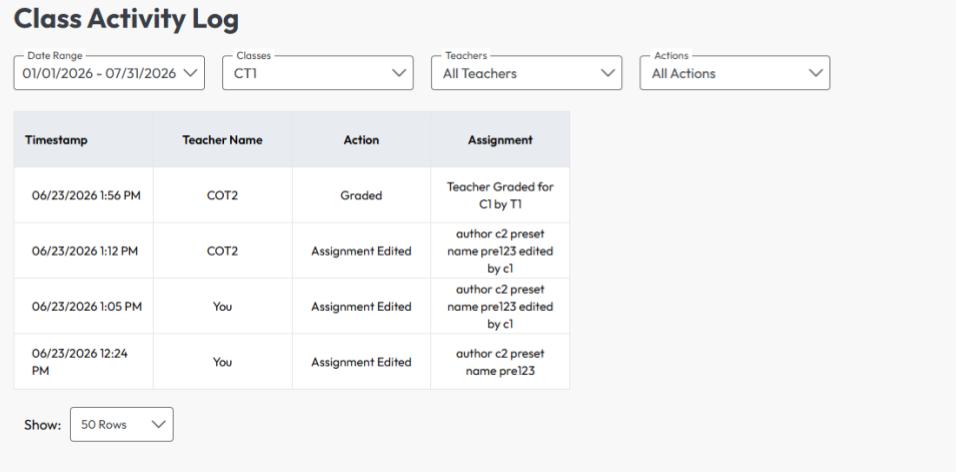
You can access this tool via the Assessments tab in your lateral menu.
You’ll be able to filter recent actions by time period, specific classes, individual teachers, or the type of action taken.
Wishing you a fantastic start to the new school year! We hope The KWL Hub continues to be a valuable and enjoyable part of your everyday classroom routine.