We are thrilled to introduce Categories: a brand-new way to classify and sort assignments on our platform. With this feature, teachers can easily organize assignments and assign custom weights to different groups of assessments, giving you total control over your grading system.
How to Create Your First Category
Navigate to Assigments > Create Assignment.
Click on the newly added Categories tab.
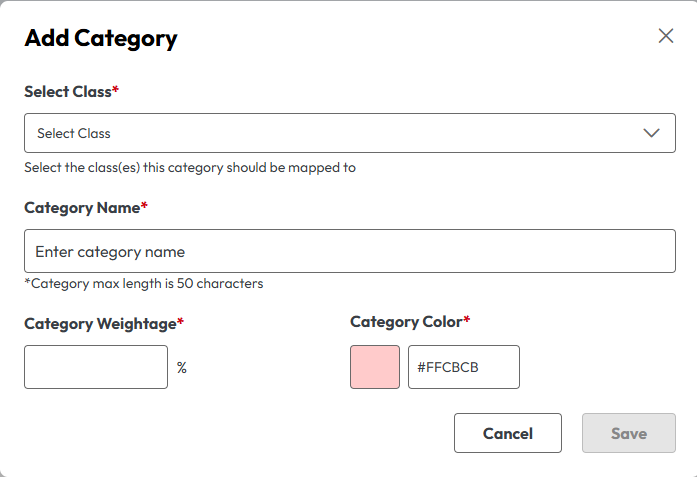
On your first visit, only the default “No Category” option will be available. To begin customizing, click Add Category to open the setup menu,
The new "Category" section
The new "Add Category" window
4. In the Add Category window, choose which class (or classes) the category will be associated with.
5. Give your category a name, a distinct color, and a weightage percentage.
6. Click Save when you are done.
Applying Categories to Assignments
Once your categories are set up, applying them is incredibly straightforward.
Start creating a new assignment just like you normally would.
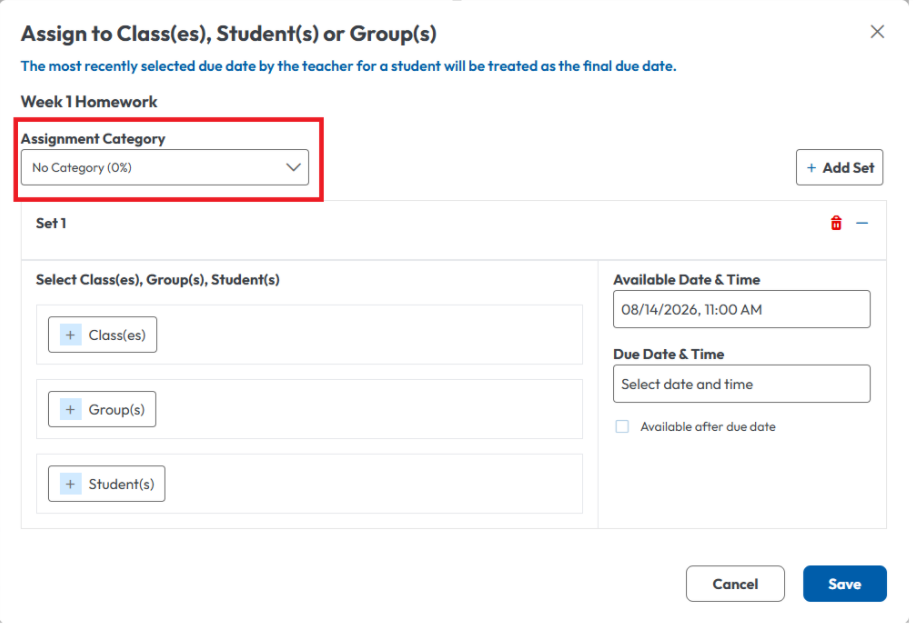
You will notice a new category option in your assignment workflow.
Open the dropdown menu to see an exhaustive list of all categories mapped to your associated classes.
Select the appropriate category (it will default to “No Category”).
Applying Categories to Assignments
Tracking Progress with Weighted Grades
To support this new system, we have also introduced dynamic new views in your Gradebook.
Navigate to the Class Report section of the Gradebook.
Select a class to reveal the new Weighted Grade button.
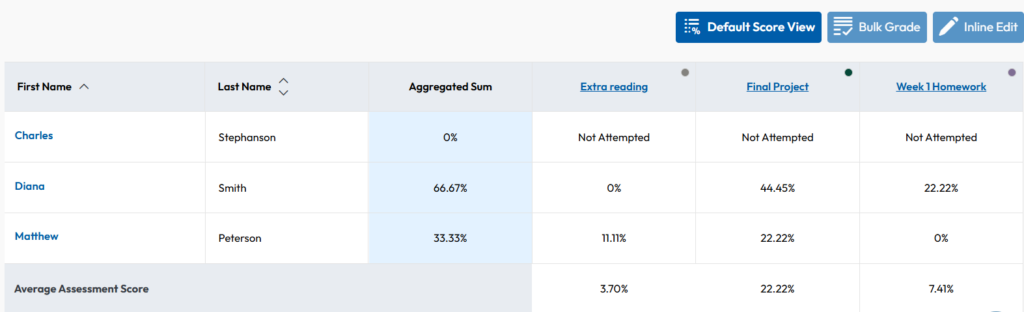
A new "Weighted Grade View" option now displays
By clicking this button, your view will instantly change from a standard table of total points achieved to a dynamic table showing values with their corresponding weights taken into account.
You can completely customize this view by filtering specific classes or categories. Best of all, the weights will automatically recalculate depending on exactly what you choose to display on the screen!
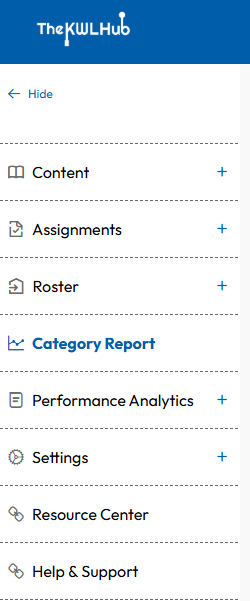
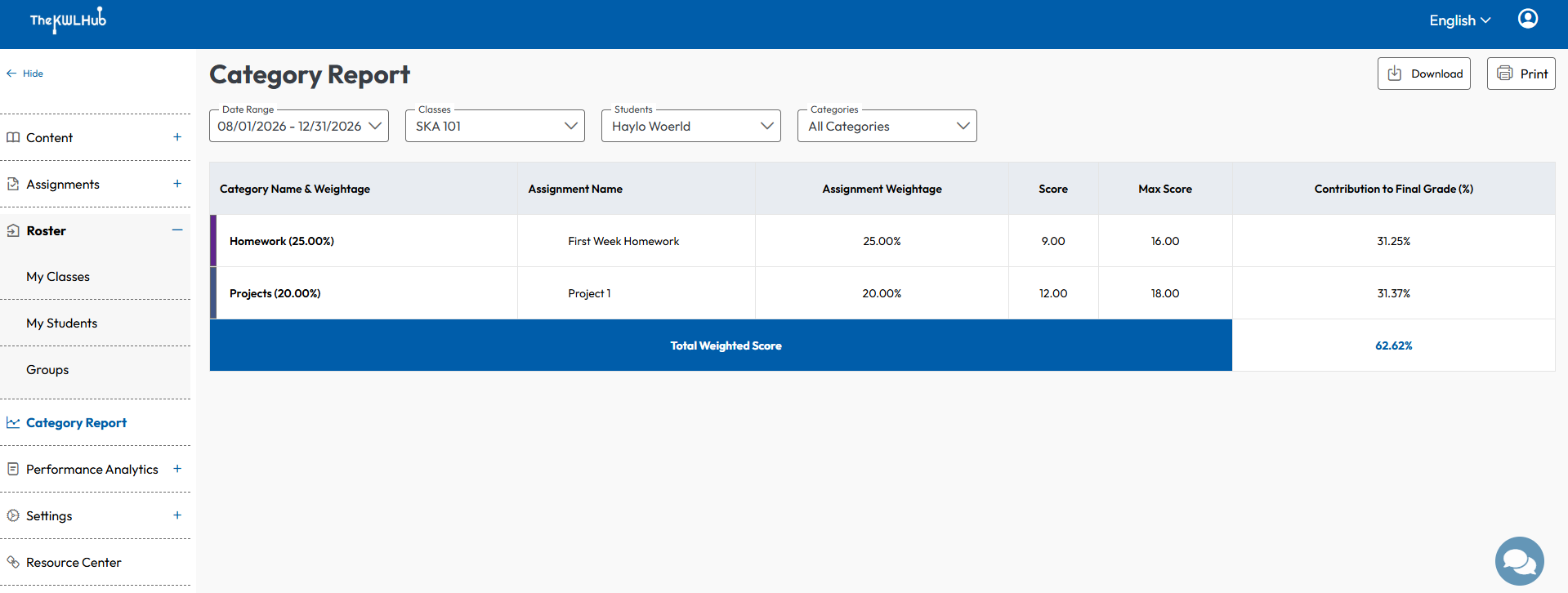
Finally, this feature also has a dedicated section in your main sidebar.
From this menu (see image below(, you can access a highly detailed report for each student across any of their categories. This makes it easier than ever to track their individual performance and see exactly how each score contributes to their final course grade.
Answering your questions about Category Report
What if I don’t want to use the new categories feature?
That is completely fine! Your account comes with a default "No Category" option. If you leave all your assignments mapped to this default category, your grading will function exactly as it did under the previous system.
Will other teachers be able to see the categories I created?
If your school or district has the co-teaching feature enabled, then yes - any co-teachers assigned to your shared classes will be able to view, use, and edit the categories you create for those specific classes.
Why does the sum of weights exceed 100% for my classes?
This is currently by design. To offer maximum flexibility as you set up your gradebook, the system allows the sum of your category weights to exceed 100% as you add and adjust categories for the first time. We recommend double-checking your weight distribution when finalizing your class setup!
Why do grades keep changing when I change filters?
To give you complete control and maximum customization, weighted grades are calculated dynamically based on the exact filters you apply. Adding or removing categories from your active view will automatically adjust the calculations based only on what is visible. For the most consistent results, we recommend establishing your core categories early on and keeping your filters consistent.
Why can’t I change the category of an assignment?
Currently, you can only change the category of an assignment if no sets are assigned to it. This is a safeguard designed to prevent sudden grade shifts and avoid causing confusion for students.